---
title: M365 Apps/Office
nav_order: 8
prev_url: /appsscriptvariables.html
prev_label: Apps Script Variables
next_url: /drivers.html
next_label: Drivers
parent: UI Overview
---
# M365 Apps/Office
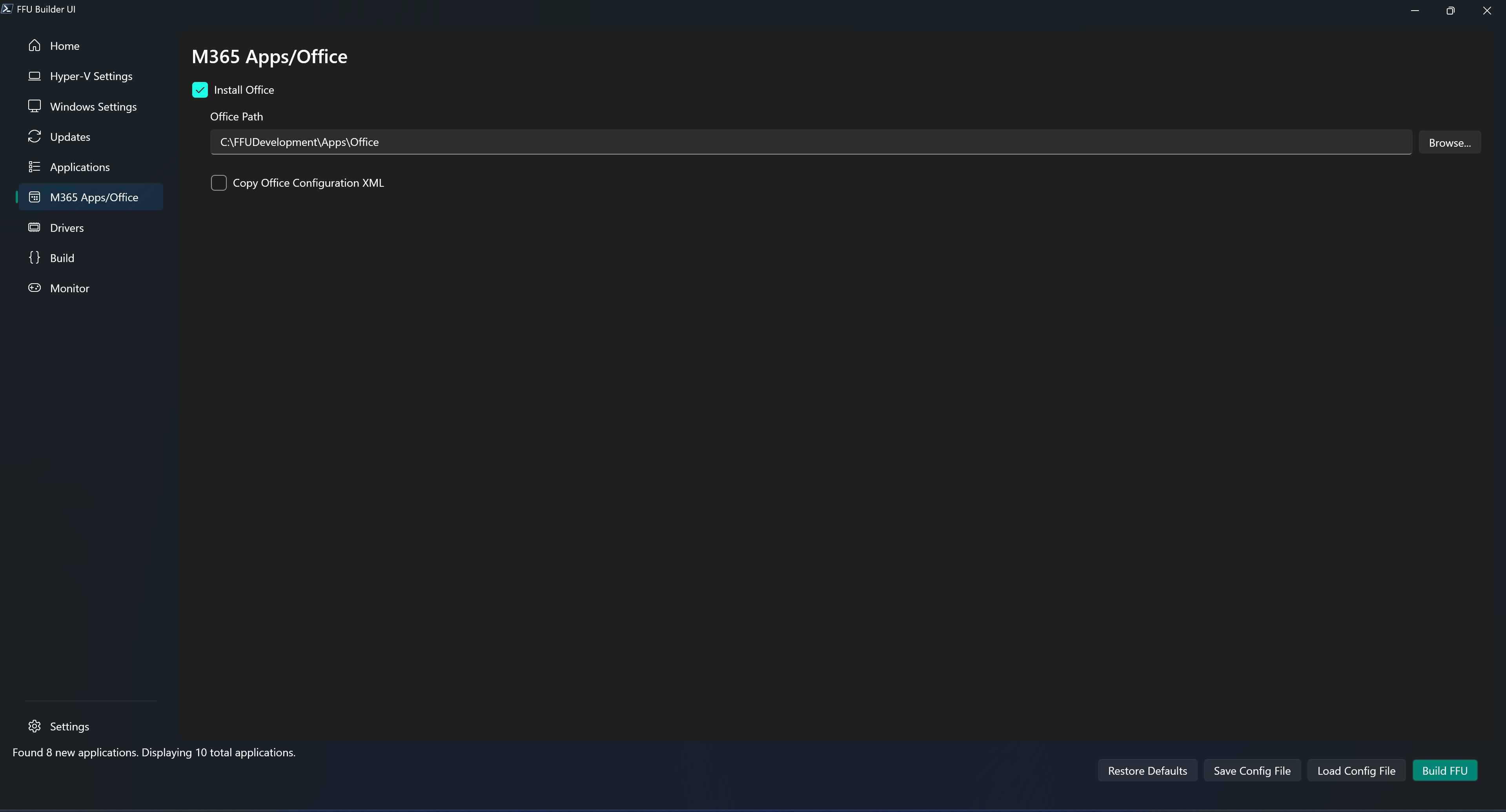
FFU Builder uses the Office Deployment Toolkit (ODT) to install Office. In the `.\FFUDevelopment\Apps\Office` folder you'll find two files:
* `DownloadFFU.xml`
* `DeployFFU.xml`
## DownloadFFU.xml
`DownloadFFU.xml` is responsible for the download of Office. It's invoked by `setup.exe /download .\DownloadFFU.xml` during the build process. It defaults to downloading the current channel 64-bit version of Office matching the current OS language to `C:\FFUDevelopment\Apps\Office`.
`DownloadFFU.xml` contents:
```
```
If you want to modify the language, you'll need to change the language ID to the language you wish to download and install.
For more information about deploying languages see: [Overview of deploying languages for Microsoft 365 Apps - Microsoft 365 Apps Microsoft Learn](https://learn.microsoft.com/en-us/microsoft-365-apps/deploy/overview-deploying-languages-microsoft-365-apps)
## DeployFFU.xml
`DeployFFU.xml` is responsible for customizing the installation of Office. If you don't provide a custom XML, it will default to using what's in `DeployFFU.xml`. The default configuration will install the 64-bit current channel version of Office with Word, Excel, Powerpoint. Below is what's currently in `DeployFFU.xml`:
```
```
## Copy Office Configuration XML
If you want to include your own custom XML file for office, check **Copy Office Configuration XML** and browse to the location of your custom XML file. The path to your custom Office configuration XML file is stored in the `OfficeConfigXMLFile` parameter. This file gets added to the `.\FFUDevelopment\Apps\Office` folder and is referenced in the `.\FFUDevelopment\Apps\Orchestration\Install-Office.ps1` file.
{% include page_nav.html %}